
These guidelines will help you report the different stages of a waste shipment in the Digital Waste Shipment System (DIWASS) so that it meets the EWSR requirements for the Netherlands. Following these guidelines prevents unnecessary delays.
The European Waste Shipment Regulation, EWSR is known as Europese Verordening Overbrenging Afvalstoffen, EVOA in the Netherlands.
Please note: If you submitted an EWSR notification before 21 May 2026, do not report the stages of the waste shipment in DIWASS. Instead, notify the Human Environment and Transport Inspectorate (ILT) by email. Read more about how to do this on Guidelines for completing an EWSR waste shipment notification.
Submitting a movement document
The notifier must report an EWSR waste shipment in DIWASS by submitting a movement document no later than 2 working days before the shipment is due to start.
Every employee who will use DIWASS needs an EU Login account.
You can create an EU Login account by clicking on ‘Create an account’.
If you need help, you can find instructions on the EU Login website.
Once you have created your personal account, you can log in to DIWASS.
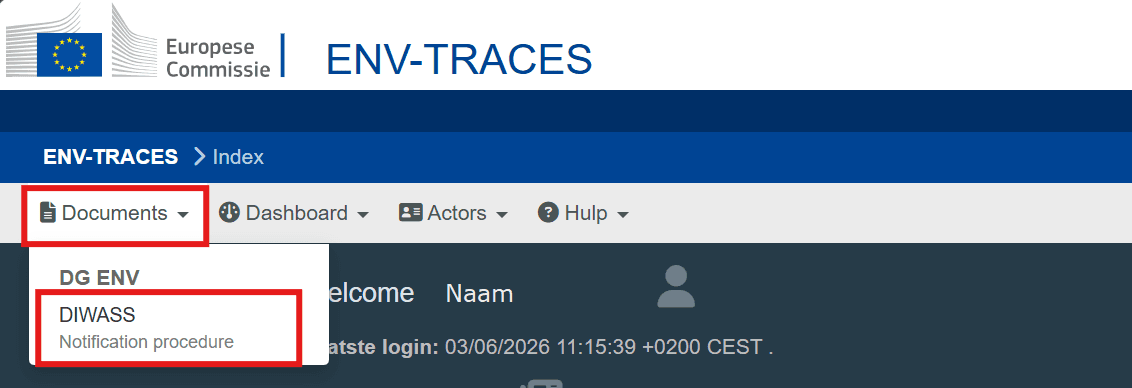
At the top left of the screen, go to 'Documents' and select 'DIWASS, Notification procedure'.
Find and select the relevant notification number.
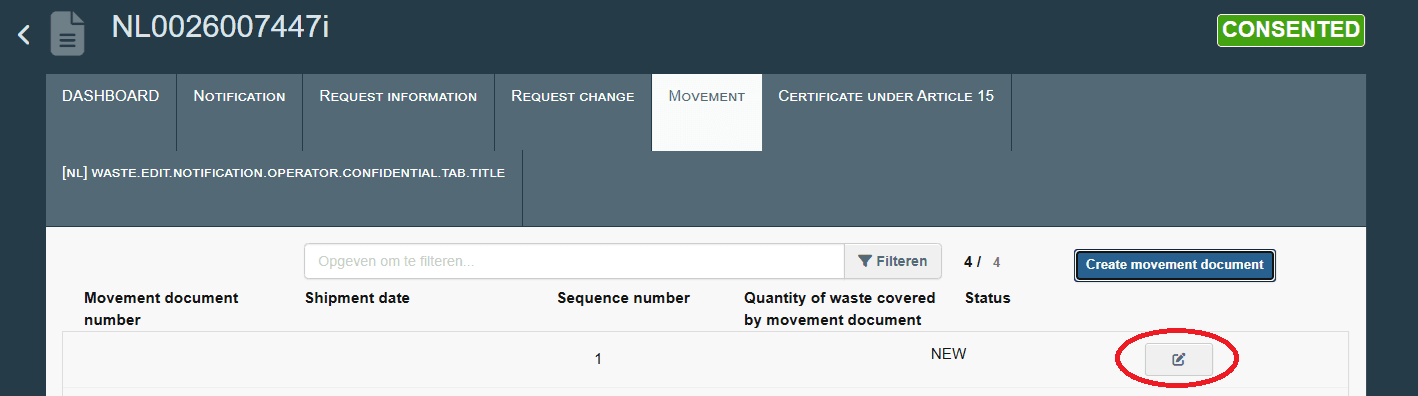
Select the 'Movement' tab and then 'Create movement document'.
Then click the 'Compose' symbol on the right to create a sequence number.
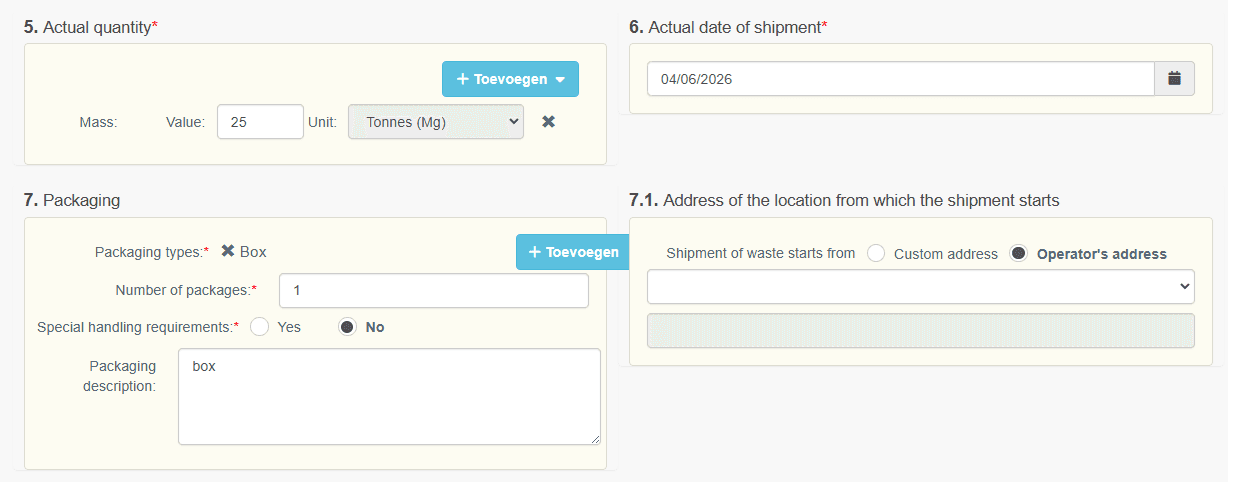
Scroll down slightly and complete block 2.b 'Movement document is created'.
If this is not a return shipment or illegal shipping, select 'No' in both fields.
Then complete:
- Block 5, Actual quantity.
- Block 6, Actual date of shipment.
- Block 7, Packaging.
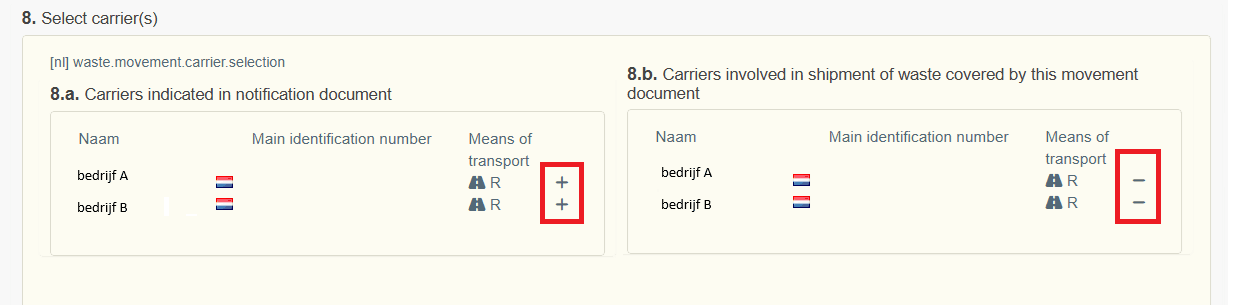
If the notification includes more than 1 carrier, select the correct carrier for this waste shipment.
In block 8.a., click the plus sign next to the carrier’s name to select it. You can then add the carrier in block 8.b.
You can remove a carrier if necessary. In block 8.b., click the minus sign next to the carrier’s name.
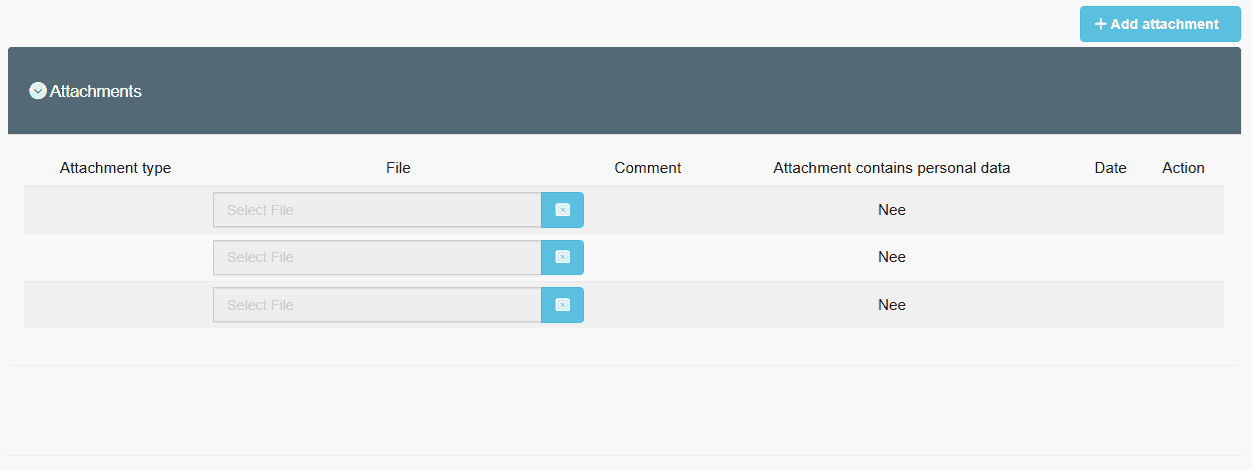
If you want to add an attachment, scroll to the bottom of the page.
You may need an attachment for example, if the decision on your EWSR notification requires you to provide a route description for each shipment. This may apply to collection routes.
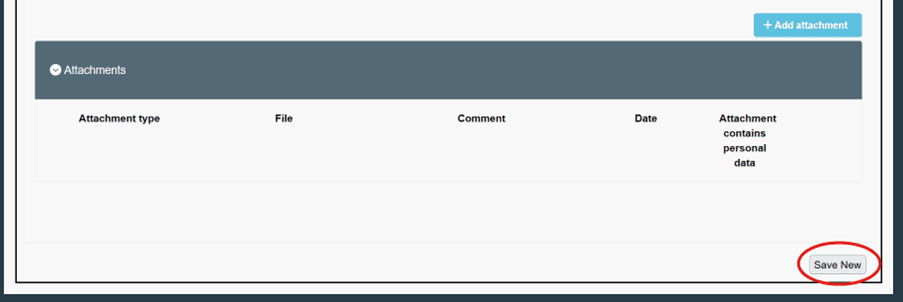
To save the details you just filled in, scroll to the bottom of the page and select 'Save New'.
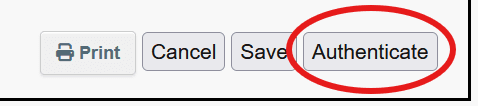
After saving the movement document you just created, you can confirm the waste shipment it by authenticating it. This replaces any signatures.
Open the 'Movement' tab and click the relevant sequence number.
Check the details, scroll down and select 'Authenticate'.
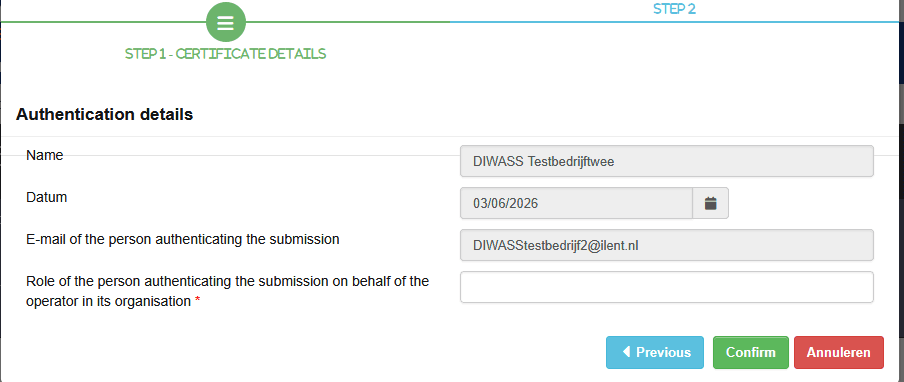
After authentication, you will see a screen with some fields already filled in. You only need to enter your role in the organisation to complete the authentication.
Enter this in 'Role of the person authenticating the submission on behalf of the operator in its organisation'.
Then select 'Confirm'.
'Annuleren' means 'Cancel'.
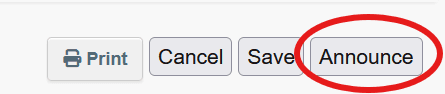
You can now submit the movement document. Open the 'Movement tab' and click the relevant sequence number.
Scroll down and click on 'Announce'.
Report start of waste shipment
The carrier reports in DIWASS that the waste shipment has started.
At the top left of the screen, go to 'Documents' and select 'DIWASS, Notification procedure'.
Find and select the relevant notification number.

Open the 'Movement' tab. Select the relevant shipment by ensure you select the correct sequence number.
Check the completed details in block 8. Scroll down and click on 'Create carrier transport'.
Select the operator’s company name.
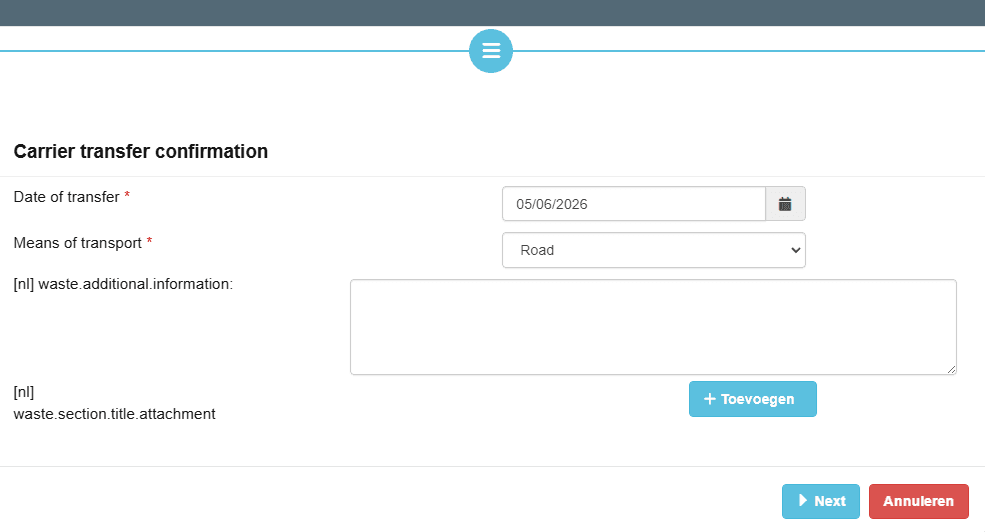
You will automatically see a new screen, 'Carrier transfer confirmation'.
Enter the 'Date of transfer' and the 'Means of transport'.
'Toevoegen' means 'Add'.
Then select 'Next'.
'Annuleren' means 'Cancel'.
You will then see a screen with some fields already filled in. You only need to enter your role in the organisation to confirm the start of the waste shipment.
Enter this in 'Role of the person authenticating the submission on behalf of the operator in its organisation'.
Then click on 'Confirm'.
'Annuleren' means 'Cancel'.
Report receipt of waste shipment
The consignee of the waste shipment, at the recovery or disposal site, notifies DIWASS that the waste shipment has been received. The consignee must do this within 2 working days after receiving the waste shipment.
At the top left of the screen, go to 'Documents' and select 'DIWASS, Notification procedure'.
Find and select the required notification number.
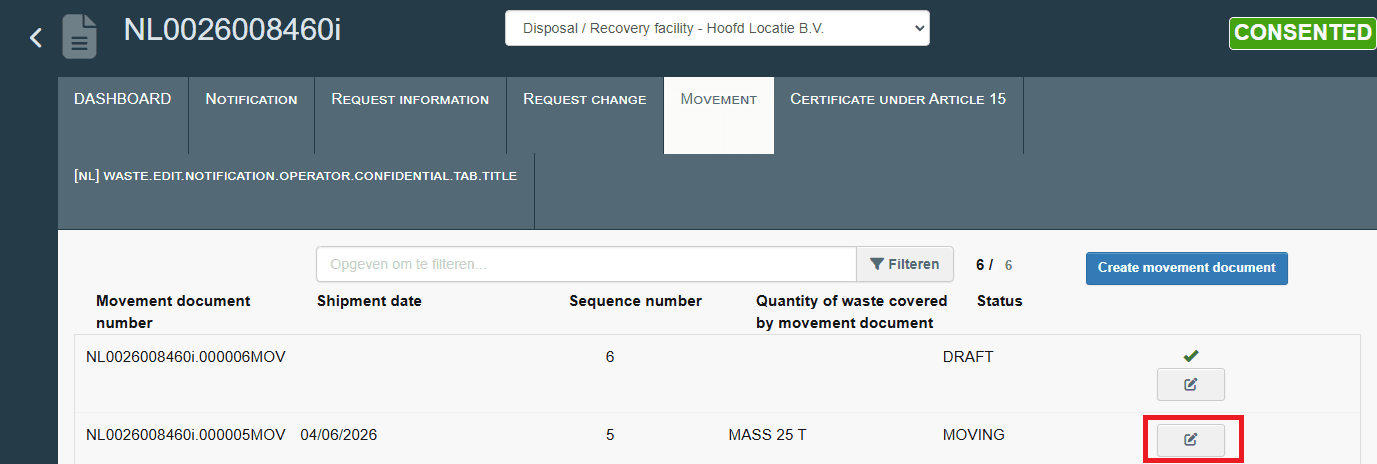
Open the 'Movement tab' and select the relevant sequence number.
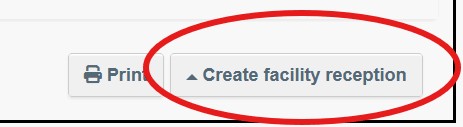
Check the details and scroll to the bottom of the page.
Click on 'Create facility reception'.
Select the operator’s company name.
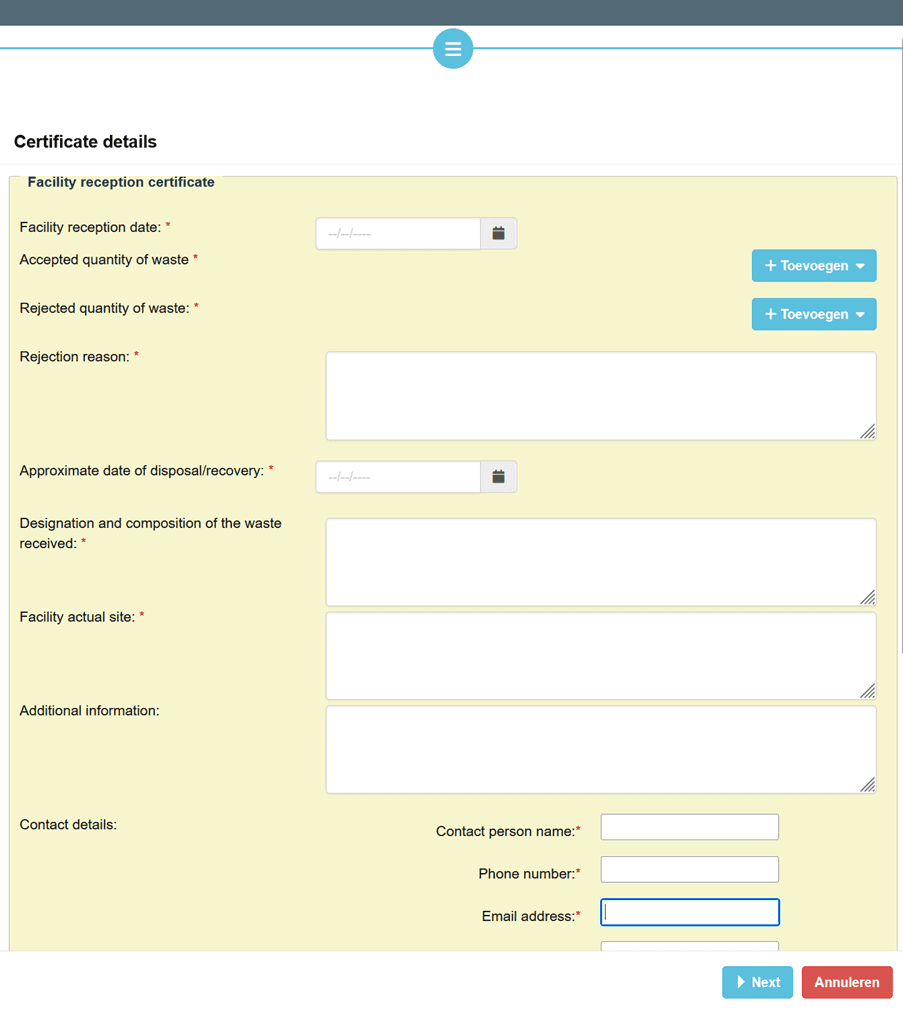
You will automatically see a new screen. Fill in the fields marked with an asterisk (*).
'Toevoegen' means 'Add'
Click on 'Next' at the bottom of the page.
'Annuleren' means 'Cancel'
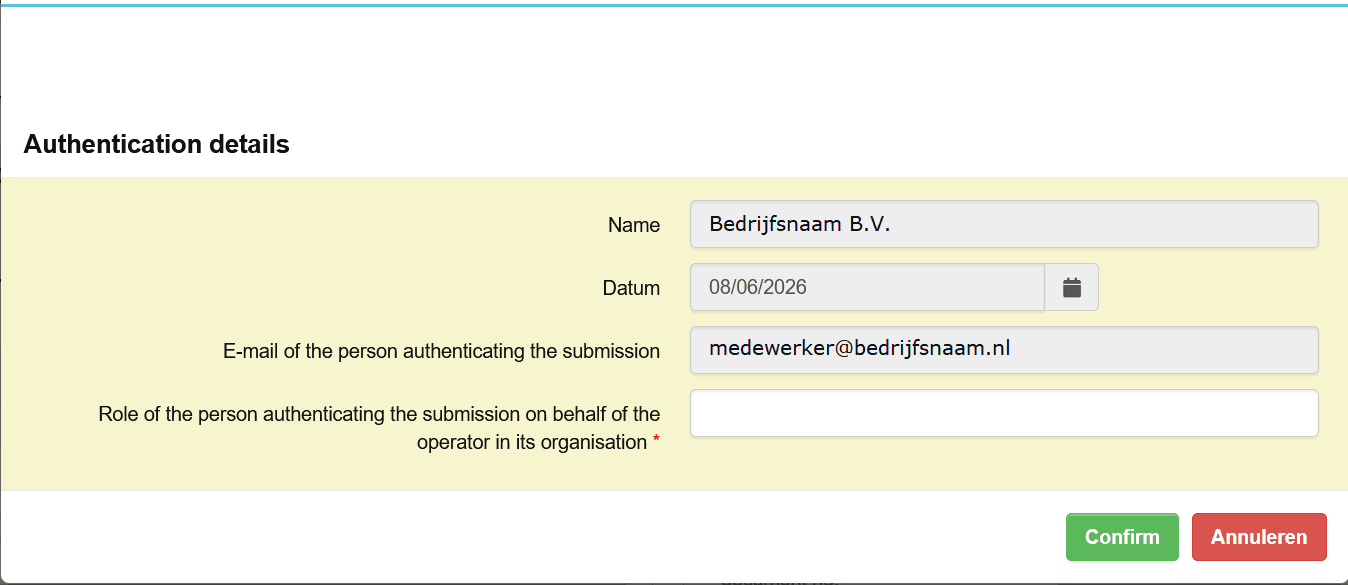
You will then see a screen with some fields already filled in. You only need to enter your role in the organisation to confirm the receipt of the waste shipment.
Enter this in 'Role of the person authenticating the submission on behalf of the operator in its organisation'.
Then click on 'Confirm'.
'Annuleren' means 'Cancel'.
Report processing of waste shipment
The operator, at the recovery or disposal site, reports in DIWASS when the when the processing of the waste has been completed. The operator must do this no later than 12 months after receiving the waste shipment.
At the top left of the screen, go to 'Documents' and select 'DIWASS, Notification procedure'.
Find and select the required notification number.

Open the 'Movement tab' and select the relevant sequence number.
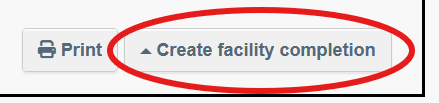
Check the details and scroll down.
Click on 'Create facility completion'.
Select the operator’s company name.
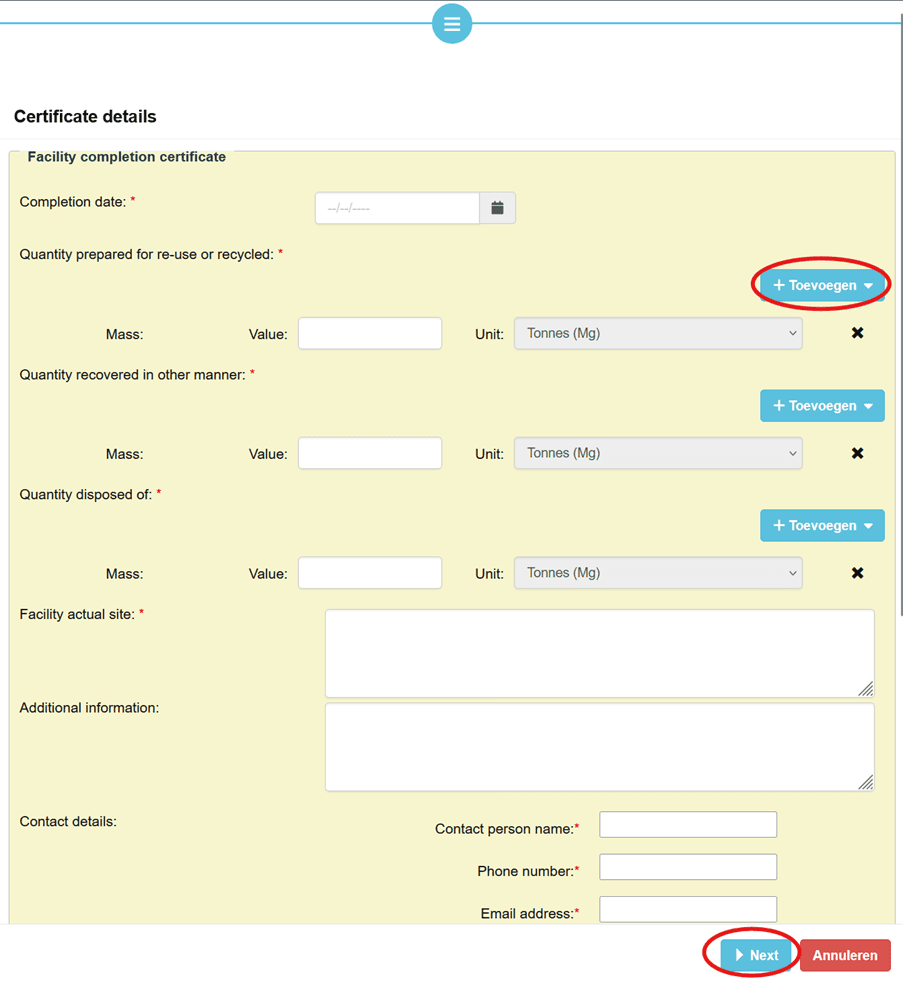
You will automatically see a new screen. Fill in the fields marked with an asterisk (*).
'Toevoegen' means 'Add'
Click on 'Next' at the bottom of the page.
'Annuleren' means 'Cancel'
You will then see a screen with some fields already filled in. You only need to enter your role in the organisation to confirm the processing of the waste shipment.
Enter this in 'Role of the person authenticating the submission on behalf of the operator in its organisation'.
Then click on 'Confirm'.
'Annuleren' means 'Cancel'.
Withdraw waste shipment
If the waste shipment is cancelled after notification, the notifier must report this. You can only do this if the shipment notification has 'Announced' status.
At the top left of the screen, go to 'Documents' and select 'DIWASS, Notification procedure'.
Find and select the required notification number.
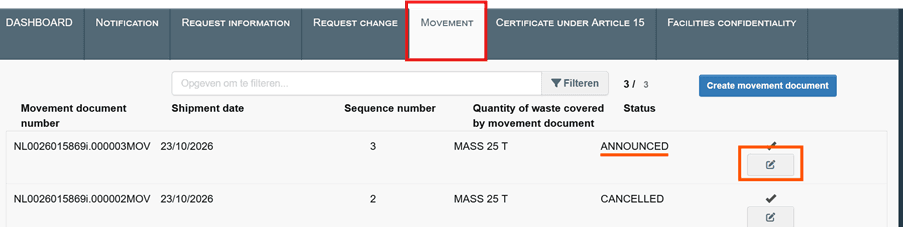
Open the 'Movement tab' and select the relevant sequence number.

Scroll to the bottom of the page, below block 16.
Click on 'Cancel'.
The waste shipment is immediately cancelled and will have 'Cancelled' status. You cannot undo this.
Please note: Click on the grey 'Cancel' button to cancel the movement document. The red 'Cancel notification' button cancels the entire notification. You cannot undo this.